
Save time. Stay consistent. Delight your buyers all within your CRM.
As a real estate agent, connecting buyers with their dream homes quickly and efficiently is paramount. ZipperAgent's Property Alert feature does just that, automating personalized listing emails directly to your clients' inboxes. This powerful tool not only saves you countless hours but also solidifies your role as their best resource, driving traffic straight back to your website. It's genuinely effortless client engagement!
How to create a property alert from the CRM for your buyers!
🔑 Step 1: Log In to Your ZipperAgent Account
Your CRM is the command center for all your client communications.
- Go to www.zipperagent.com
- Click Login in the top-right corner.
- Enter your email and password. Click LOGIN.
💡 Tip: Save your login details in your browser for faster access every day.
🗂️ Step 2: Navigate to Your Client's Contact Profile
Finding the right client is the first step to setting up their personalized alerts.
- From your ZipperAgent Dashboard, click on the Contacts tab in the top navigation bar.
-
Select Contacts from the dropdown menu.
- On the Contacts page, use the search bar on the right-hand side to search for your client by name.
-
Click on the client's name to open their individual profile.
✍️ Step 3: Define Their Dream Home Search Criteria
This is where you tell ZipperAgent exactly what properties your client is looking for.
- Once in the client's profile, look for the "Searches & Listings" section on the right-hand side.
-
Under "Searches," click the (+) icon to add a new search.
-
A quick search menu will appear.
- Choose whether the client is a "Buyer" or "Renter."
- Complete the criteria for their ideal home: location, price range, number of bedrooms/bathrooms, property type (single-family, condo, land), and any other specific preferences. The more detailed you are, the more relevant the alerts will be!
-
Click Save once all criteria are entered.
📅 Step 4: Schedule Their Personalized Property Alerts
Choose how often your client receives new listings that match their criteria.
- After saving the search, you'll be returned to the client's profile.
- Next to the search you just created, locate the "Property Alert" option.
-
Click the dropdown menu and choose the desired interval for the property alert emails (e.g., Daily, Weekly, Bi-Weekly).
🏠 Your Guide: Empowering Clients to Create Property Alerts on Your Site
Why this is important: Empowering your clients to create and manage their own property alerts directly on your website is a powerful way to keep them engaged, informed, and loyal. It positions your site as their go-to resource, providing a seamless and personalized experience that drives traffic back to your listings and highlights your expertise, all while saving you time.
🔑 Step 1: Your Client Logs In to Your Website
The journey begins directly on your professional real estate website.
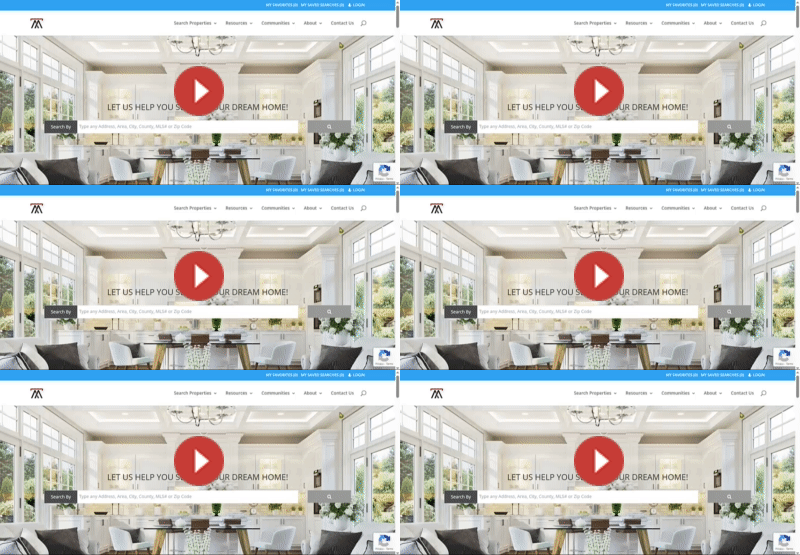
- Your customers will navigate to your site domain (e.g., www.yourwebsite.com).
-
In the upper right-hand side of the homepage, they will find and click on "Log In."
-
Buyers will then be prompted to enter their login information (or register if they are new). From here, they can choose to subscribe to property alerts and select their preferred alert frequency (e.g., daily, weekly).
💡 Tip: Encourage clients to save their login details for quick access to their personalized property searches!
🔎 Step 2: Your Client Initiates a Property Search
Once logged in, your clients can immediately start exploring properties.
- After logging in, your customer will be navigated back to your site's homepage.
- They can then begin their search by typing in an area, city, or zip code into the search bar.
-
Once results appear, they will have the option to save their search and refine it by adding specific criteria, like number of bedrooms, bathrooms, price range, and more.
📝 Step 3: Managing Saved Searches
Your clients can easily keep track of all the properties that catch their eye.
-
The top right corner of their screen will reflect how many searches they have saved, providing a quick overview.
- A buyer can edit their saved searches by clicking on "Saved Searches," then selecting "View Searches." From there, they can easily deselect any criteria they would like to remove or add new ones, and then save the updated search.
Once the criteria is updated they should hit save search.
Why this is important: Giving clients control over their search criteria ensures they always receive the most relevant listings, which keeps them engaged with your site and prevents alert fatigue. This personalized experience makes your website an invaluable tool for their home search.
💼 Step 4: Agent Access to Client Searches within the CRM
You, as the agent, have complete visibility and control over your clients' saved searches.
- Log in to your ZipperAgent account.
- Navigate to your Contacts and search for the client you wish to view.
-
Once in the contact's profile, look to the right-hand side under the "Searches & Listings" section, and you will see all their saved searches listed.
- To edit a search on behalf of the buyer, click on the pencil icon next to the specific search. This opens the search criteria, allowing you to modify it and save the updated search directly.
Why this is important: This powerful integration ensures you are always aligned with your clients' exact preferences. You can proactively adjust alerts, suggest new areas, or troubleshoot if they're not seeing what they need. It streamlines your workflow and enhances the value you provide, positioning you as a truly indispensable resource.
🎉 You’re Done! Congratulations, you've just learned how to empower your clients with self-service property alerts, keeping them engaged and driving traffic to your site!
💬 Why Agents & Clients Love This Feature:
✔ Clients stay informed with up-to-the-minute, personalized listings.
✔ Drives traffic directly to your website, boosting your brand visibility.
✔ Saves you time by automating listing delivery.
✔ Empowers clients to refine their own search, leading to higher satisfaction.
✔ Keeps you top-of-mind as their go-to real estate expert!